
Search Console & Growth
How to Set Up Google Search Console for a New SaaS Website
Set up Google Search Console for your SaaS: choose the right property, verify ownership, submit a sitemap, inspect key pages and establish a search baseline.
Your SaaS is live. The homepage loads, pricing is public, and the first blog post is ready. Now you need to find out whether Google can discover those pages and which searches are beginning to bring people in.
Google Search Console is a useful starting point. A good first setup gives you access to the right website property, a sitemap Google can retrieve, and a record of what happened when you inspected your important pages.
Keep three milestones separate: ownership verified, sitemap processed, and page indexed. Completing one does not establish the next. This guide takes you through each check without turning a successful connection into a promise of search traffic.
The URLs below use example.com as an illustration. Replace them with your own production addresses. The diagrams explain the workflow; they are not screenshots of a customer account.
1. Choose a property that covers your actual website
A property defines which URLs you are looking at in Search Console. Open Search Console, choose Add property, and decide between a Domain property and a URL-prefix property.
| Property | Example entry | What it covers | Verification approach |
|---|---|---|---|
| Domain | example.com | The domain across subdomains and protocols | DNS verification |
| URL-prefix | https://www.example.com/ | URLs beginning with that exact prefix | Supported methods shown during setup |
| URL-prefix for a section | https://www.example.com/en/ | That prefix, including its language section | Supported methods shown during setup |
Google explains the scope and verification options in its property setup guide.
For a small team that controls the domain's DNS and wants a broad overview, a Domain property is often a practical starting choice. A URL-prefix property is useful when you need a specific host or section, or only have permission to verify that part of a site. This is a workflow choice, not a ranking advantage.
For a bilingual site, notice the difference between a root URL prefix and /en/. An English-section property will not describe your Chinese pages under /zh/. Also distinguish the public marketing site from an authenticated app subdomain; including a host in the reporting scope does not mean its private pages should become search landing pages.
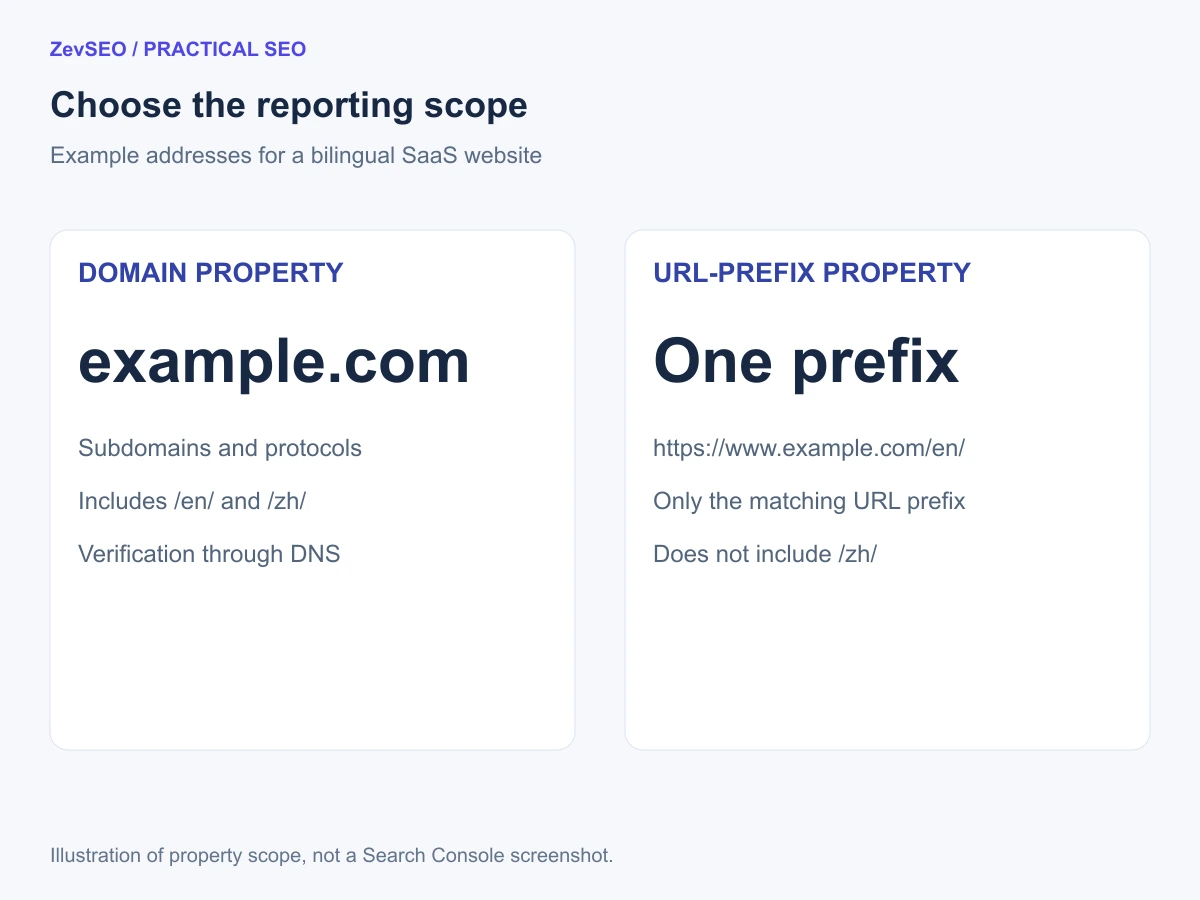
Figure 1. Choose the reporting scope before interpreting an empty report.
2. Verify ownership using a method you can maintain
If you chose a Domain property, follow the verification dialog to add the requested DNS record at the provider that manages your domain's authoritative DNS. The verification value comes from your own Search Console session.
A practical sequence is:
- Confirm which provider actually manages the domain's DNS.
- Add the record type, host and value shown by Google. Follow the provider's notation for the root host.
- Save it, allow time for the DNS change to become visible, then return to Search Console and verify.
- Keep the verification record in place after success.
Do not replace unrelated DNS records while adding the verification record. A record added at a provider that is no longer authoritative will not verify your site.
For a URL-prefix property, choose one of the methods offered in your setup dialog. If you use an HTML verification tag, it belongs in the page's HTML head. If you use a verification file, confirm the required file URL works on the intended host. Keep the verification mechanism available through future deployments.
Google's ownership verification guide describes the available methods and ongoing verification checks. Verification proves access to the property; it does not deploy changes to your website or prove that its pages are indexed.
3. Submit a sitemap that already works on your site
Before opening the Sitemaps report, visit the sitemap URL on your own website. A common location is:
https://www.example.com/sitemap.xml
Your site may instead use another path or a sitemap index that points to multiple sitemap files. Use the address your application or CMS actually publishes.
Check that the response is a supported sitemap document, rather than a login page, an error, or an HTML fallback. It should list the canonical public URLs you intend Google to discover. Review an actual product page and blog URL rather than assuming the file is correct because it opens.
With a suitable account permission, open Sitemaps in the relevant property and submit the URL. Record its reported status and any errors. Google explains submission and processing in the Sitemaps report guide.
Submitting tells Google where the sitemap is; it does not upload your pages into Google's index. A successful sitemap fetch is useful evidence about the file, not proof that every listed URL has been crawled or indexed.
4. Inspect three pages that matter to your business
Start with a small set of production URLs:
- Your homepage.
- One product or feature page with a clear customer use case.
- One published article that answers a relevant question.
Enter each complete URL in URL Inspection. Read the indexed-version information, then use a live test when you need to check the current page. Record both findings separately.
| What you find | What it establishes | A useful next action |
|---|---|---|
| Sitemap fetch succeeded | Google could process that sitemap | Inspect a listed page separately |
| Live page fetch works | The test could retrieve the current page | Review indexing instructions and indexed-version information |
| Page is reported as indexed | Google has an indexed record for the URL | Review canonical context, then monitor actual search exposure |
| URL is not indexed | The page has not reached the state you want | Read the stated reason and investigate that page |
Google's URL Inspection documentation distinguishes the indexed information from a live test. A live test cannot guarantee indexing, ranking or immediate search visibility.
For a new or materially updated page, consider requesting indexing when the tool offers that action. Treat it as a request, then follow up on the recorded state. Repeatedly submitting the same URL is not a replacement for resolving an access or content problem.
If you encounter crawl blocks or a noindex instruction, use the robots.txt and noindex guide to separate crawl access from indexing control.
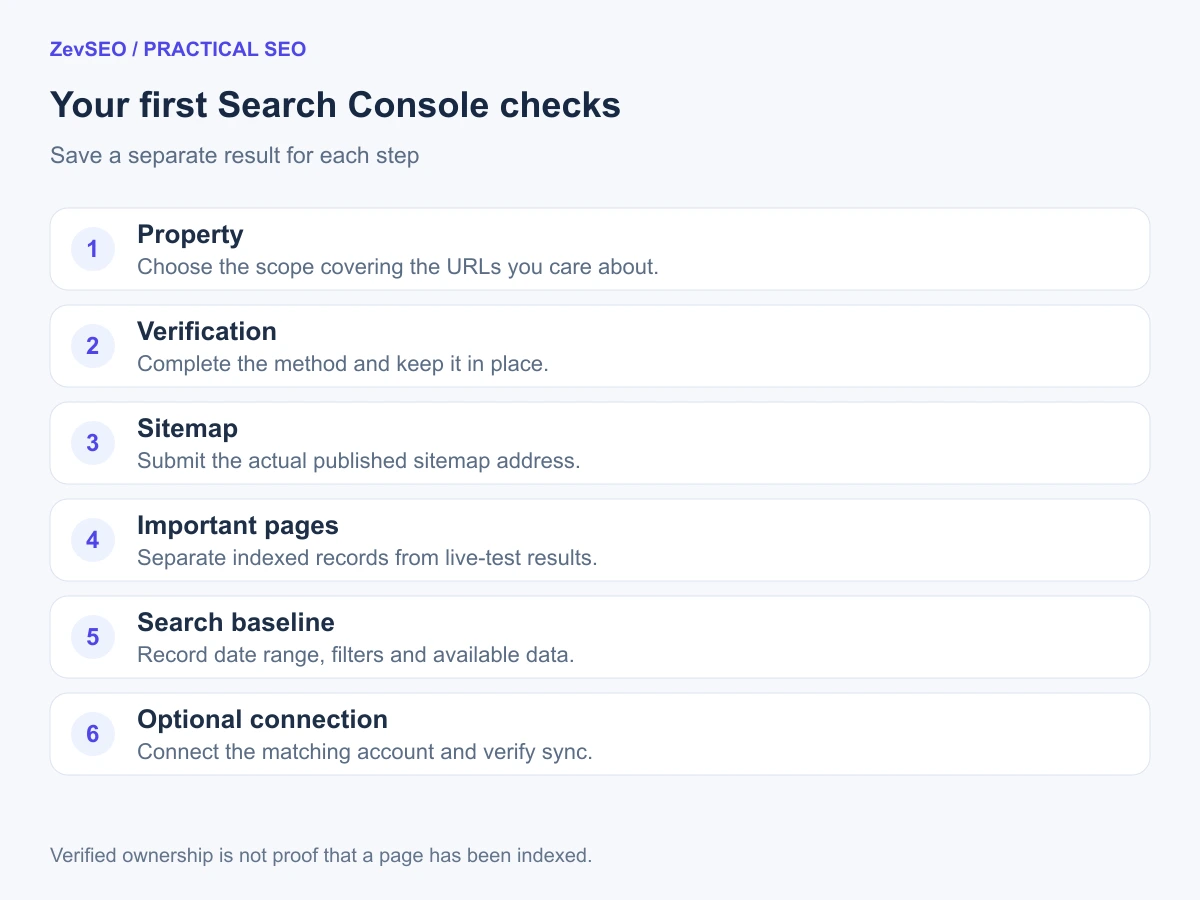
Figure 2. Keep evidence for each step instead of one overall “connected” status.
5. Establish a baseline before judging traffic
Open Performance → Search results and record the property, date range, search type and any country or device filters. Start with clicks, impressions, CTR and average position, then look at the query and page views. The Performance report guide explains those metrics and dimensions.
A newly configured site may have little data. Distinguish an authorization problem from a valid report with few impressions. Also check whether you are looking at the wrong property, host or language section before diagnosing a traffic failure.
Copy this working record into your notes:
| Check | What to save |
|---|---|
| Property | Exact property identifier and intended scope |
| Verification | Method, completion date and person responsible for maintaining it |
| Sitemap | Submitted URL, reported status and check date |
| Important pages | URL, indexed-version finding and live-test finding |
| Search baseline | Date range, filters, clicks and impressions available at the time |
| Next review | One follow-up date and the issue to check |
Keep account access maintainable too. Give teammates their own appropriate permissions rather than sharing a login. Google's permissions guide explains the different roles.
6. Connect ZevSEO after the Google-side setup
If you use ZevSEO, open the intended website project and its GSC area. Start the Google connection and choose an account that can access a matching Search Console property. Review the requested read-only permission and complete the authorization.
Then check two things separately: that the correct project is connected, and that search data has become available through synchronization. A successful authorization is not proof that a new site already has search traffic. If the property cannot be found, revisit the account, property scope and project domain first.
Use the GSC Insights feature to bring search observations into your ongoing review. Ownership verification, sitemap submission and index checks still happen in Google's tools. Connecting an analytics view does not perform those setup steps for you.
Frequently asked questions
Do I need Search Console before launching?
It is useful to prepare access and verification around launch, but do not hold a complete public site back solely because its first report is empty. Make the important pages accessible, then check discovery and indexing evidence.
Should I create both Domain and URL-prefix properties?
Start with the scope you need. A broader property and a section property can serve different reporting tasks, but creating more properties is not an SEO growth tactic.
Why is my sitemap successful but a page is not indexed?
Those statuses describe different resources and processing steps. Inspect the page and investigate its recorded reason rather than treating a successful sitemap submission as page-level confirmation.
Does connecting ZevSEO verify my domain with Google?
No. Complete or obtain access to the Search Console property first. The product connection authorizes reading available search data for the project; it does not replace website ownership verification.
Finish with a small, verifiable setup
Choose the right property, preserve its verification method, submit a working sitemap and inspect a few important pages. Save the initial search baseline and one follow-up task.
When you have data, connect it to ZevSEO's GSC Insights. For monitoring selected queries alongside the report, follow the small-website rank tracking guide.